imge
A safer, simpler alternative to ddhttps://github.com/gblach/imgeimge is a terminal UI for writing disk images to drives and copying drives back to images. It is
meant to be easier to use and less error-prone than dd, since choosing the wrong disk can wipe
the data on your hard drive.
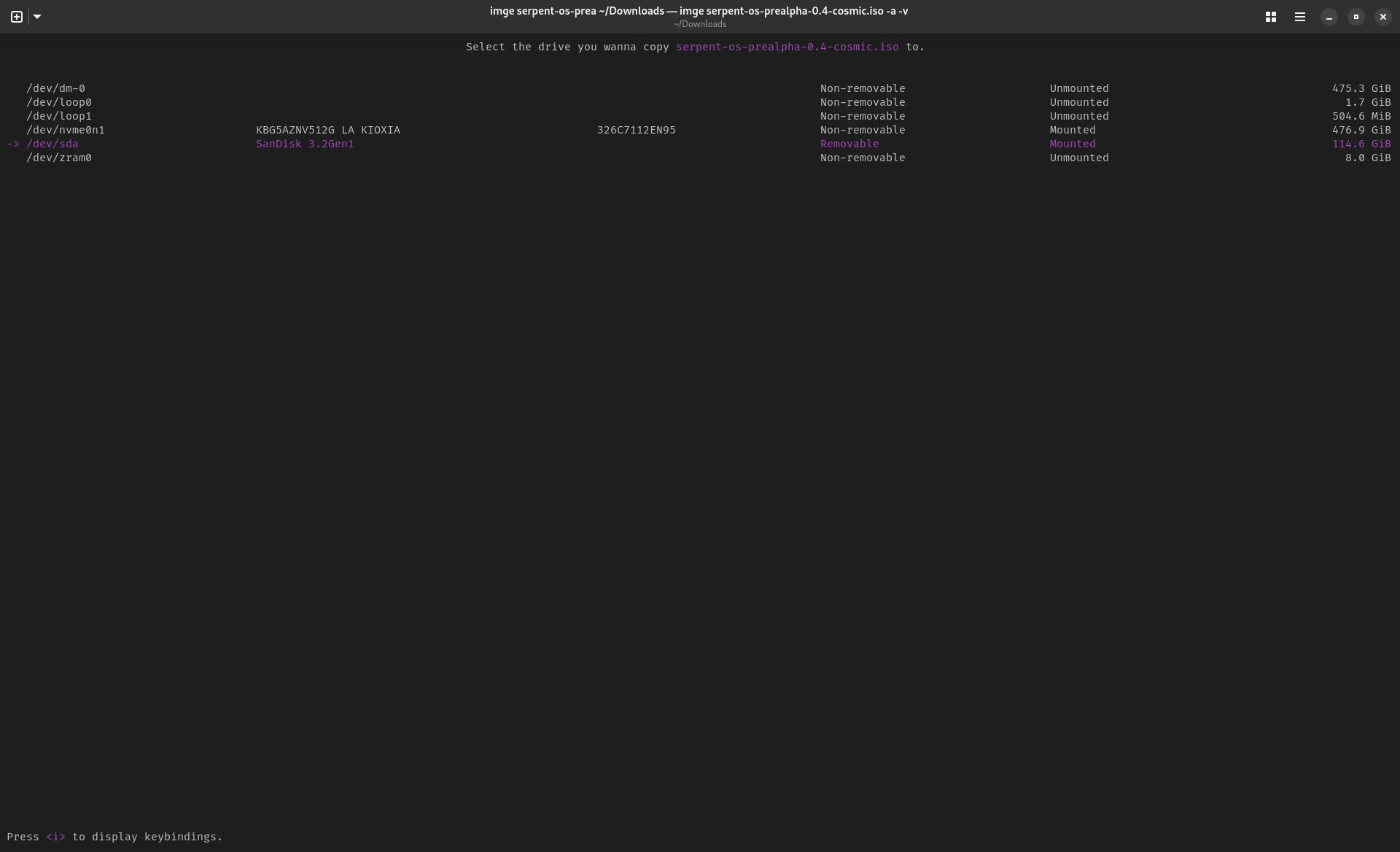
Instead of typing a device path, you pick the target from a list of drives. By default the list shows only removable drives, so your system disks stay out of reach.
Features
- Removable drives only by default - system disks are hidden unless you ask for them with
-a. - On-the-fly decompression - compressed images are written directly, without unpacking them first.
- On-the-fly compression - when copying a drive to an image whose name ends in
.gz,.bz2,.xz, or.zst, the image is compressed while it is written. - bmap support - with a block map from
bmaptool, only the mapped blocks are written and their checksums are checked, which is usually much faster. - Verification - optionally reads the data back and checks it was copied correctly.
Installation
On Fedora, install it from the gblachx/apps COPR repository:
sudo dnf copr enable gblachx/apps
sudo dnf install imge
With Cargo:
# From source
cargo install imge

# Prebuilt binary
cargo binstall imge

# From a clone of this repository
cargo install --path .
Usage
imge <image> [-a] [-b <bmap>] [-d <drive>] [-f] [-v]

Positional Arguments:
  image             path to image

Options:
  -a, --all-drives  show all drives
  -b, --bmap        use this bmap file
  -d, --drive       use this drive, do not ask
  -f, --from-drive  copy drive to image (instead of image to drive)
  -v, --verify      verify if data was copied correctly
  --help            display usage information
Accessing a drive usually requires root privileges, so run imge with sudo.
Write an image to a USB drive
Write a compressed image and check the result afterwards:
sudo imge raspios.img.xz -vIf a raspios.img.bmap file sits next to the image, imge finds and uses it automatically. You can
also point to it yourself:
sudo imge raspios.img.xz -b raspios.bmapBack up a drive to an image
Copy a drive to a zstd-compressed image:
sudo imge backup.img.zst -fSkip the drive selection
When you already know the target, for example in a script, pass it directly:
sudo imge debian.iso -d /dev/sdbScreenshots
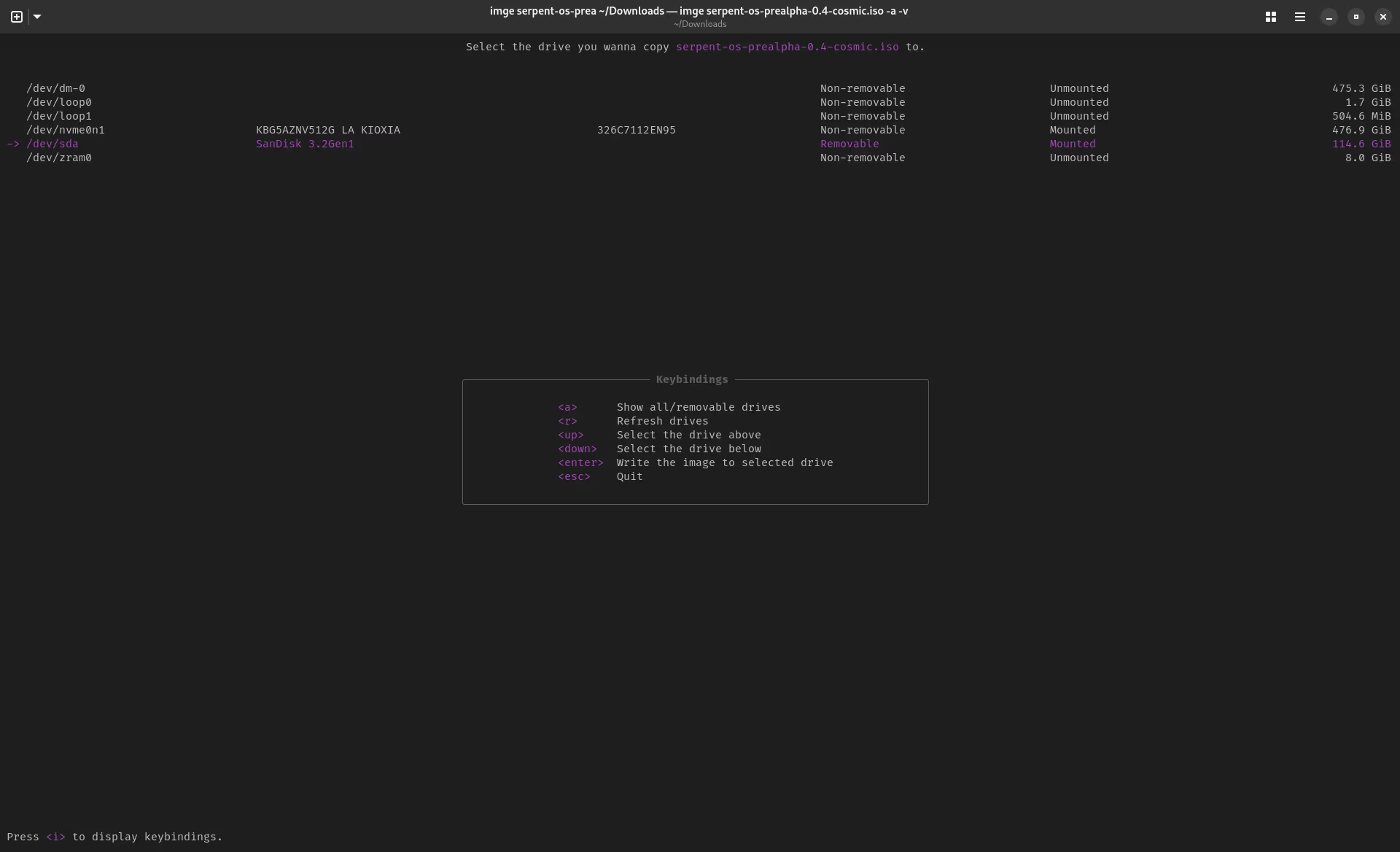
The key bindings screen:
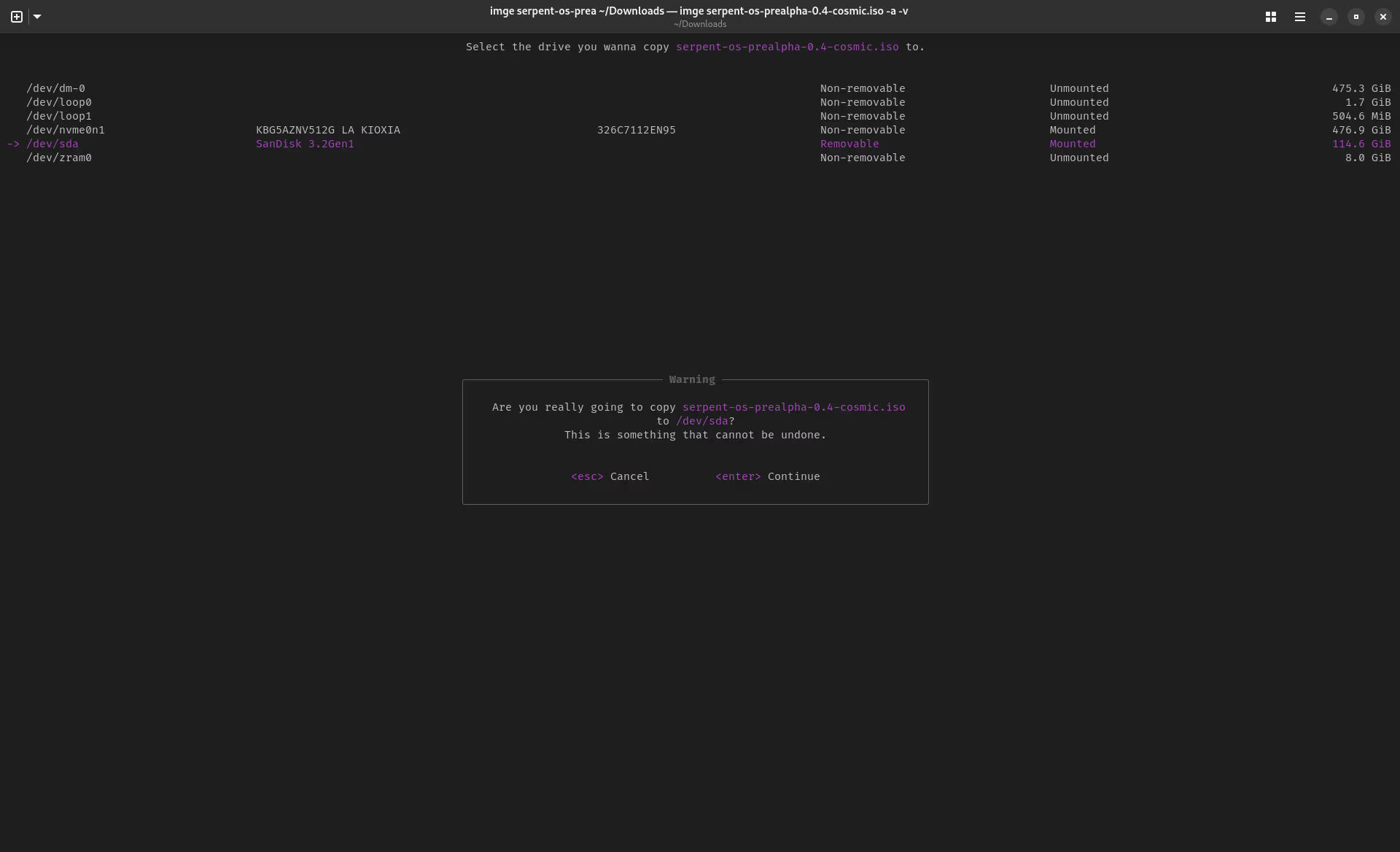
Before anything is written, imge warns you that the data on the drive will be lost:
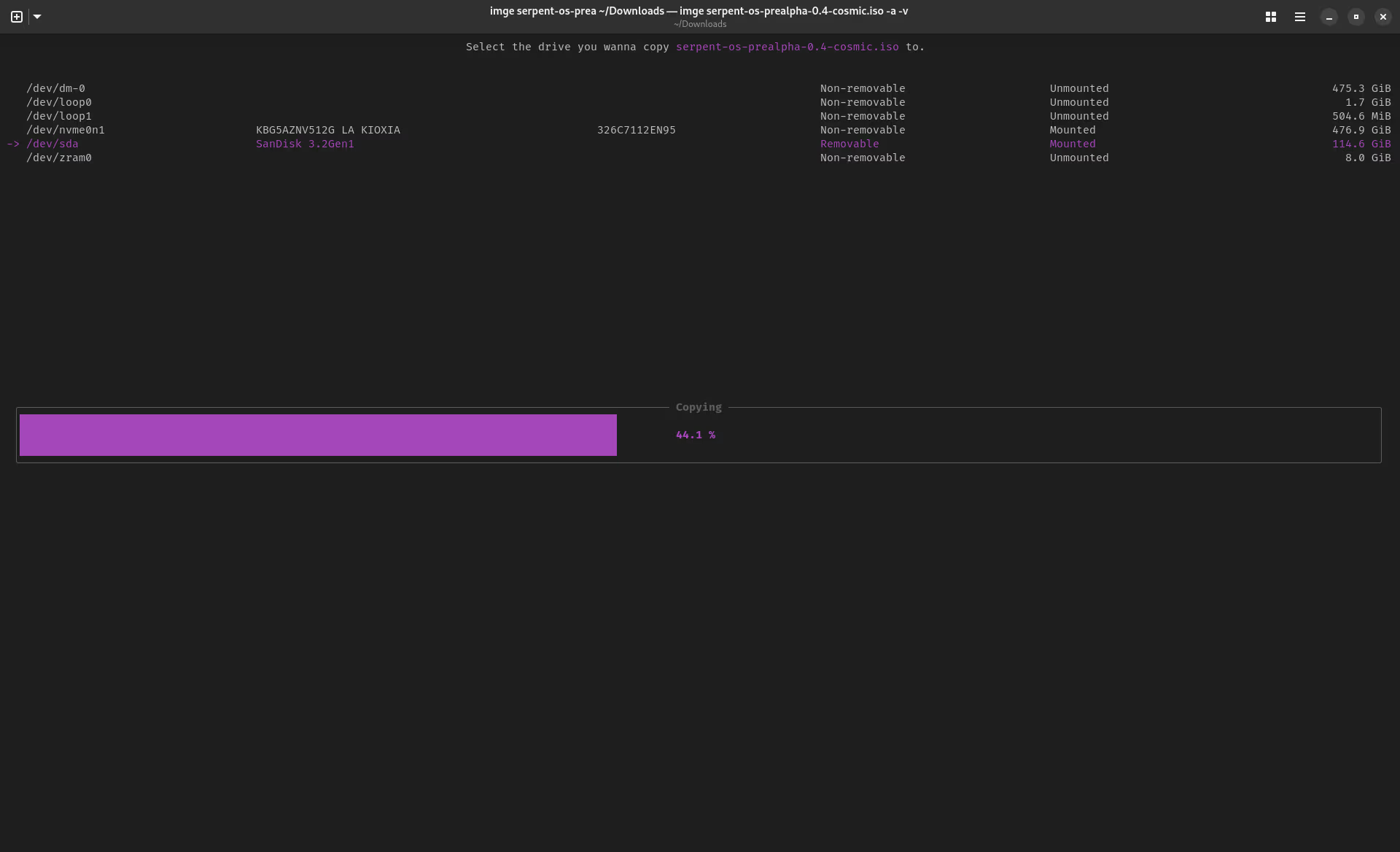
Progress is shown while the image is copied:
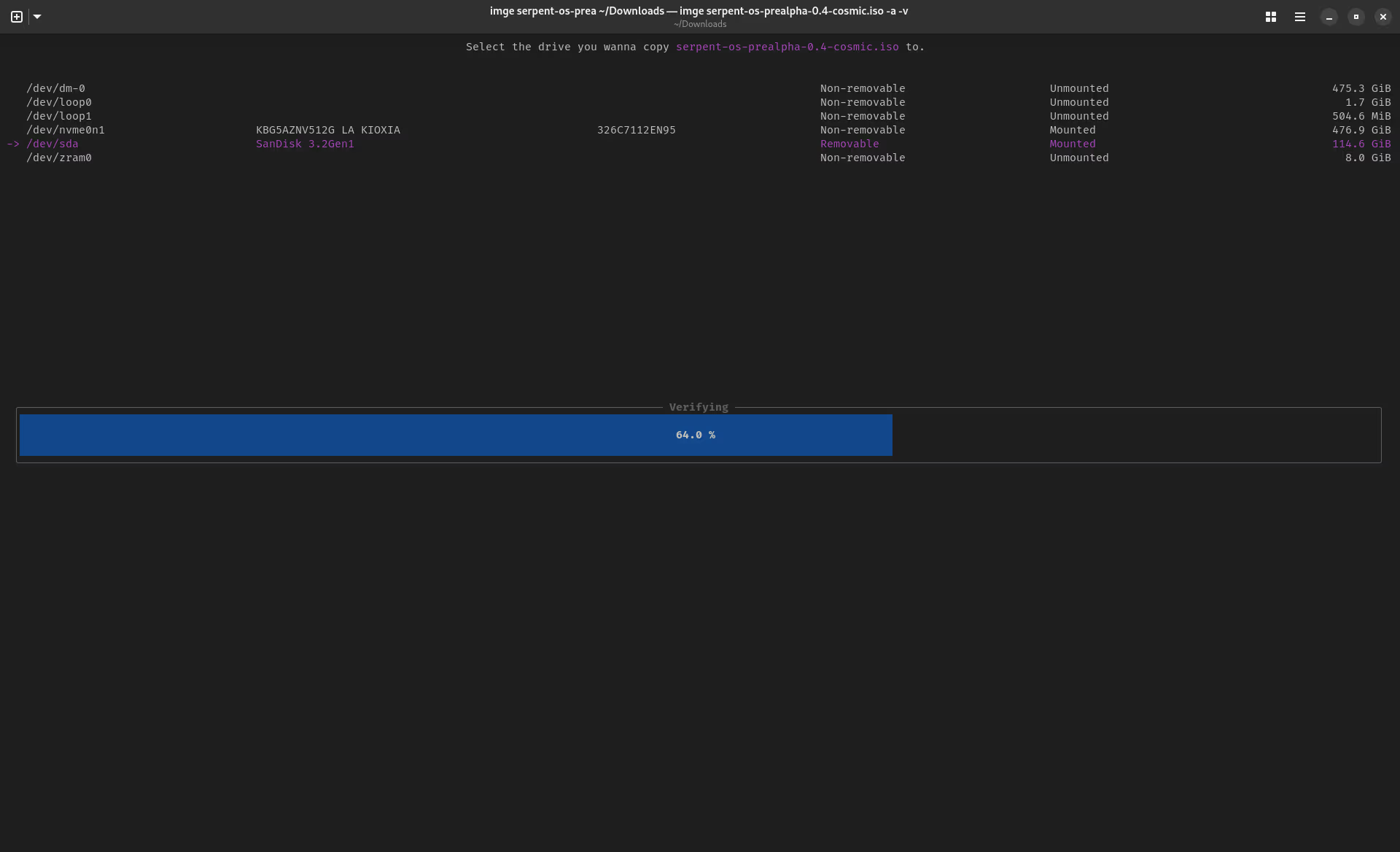
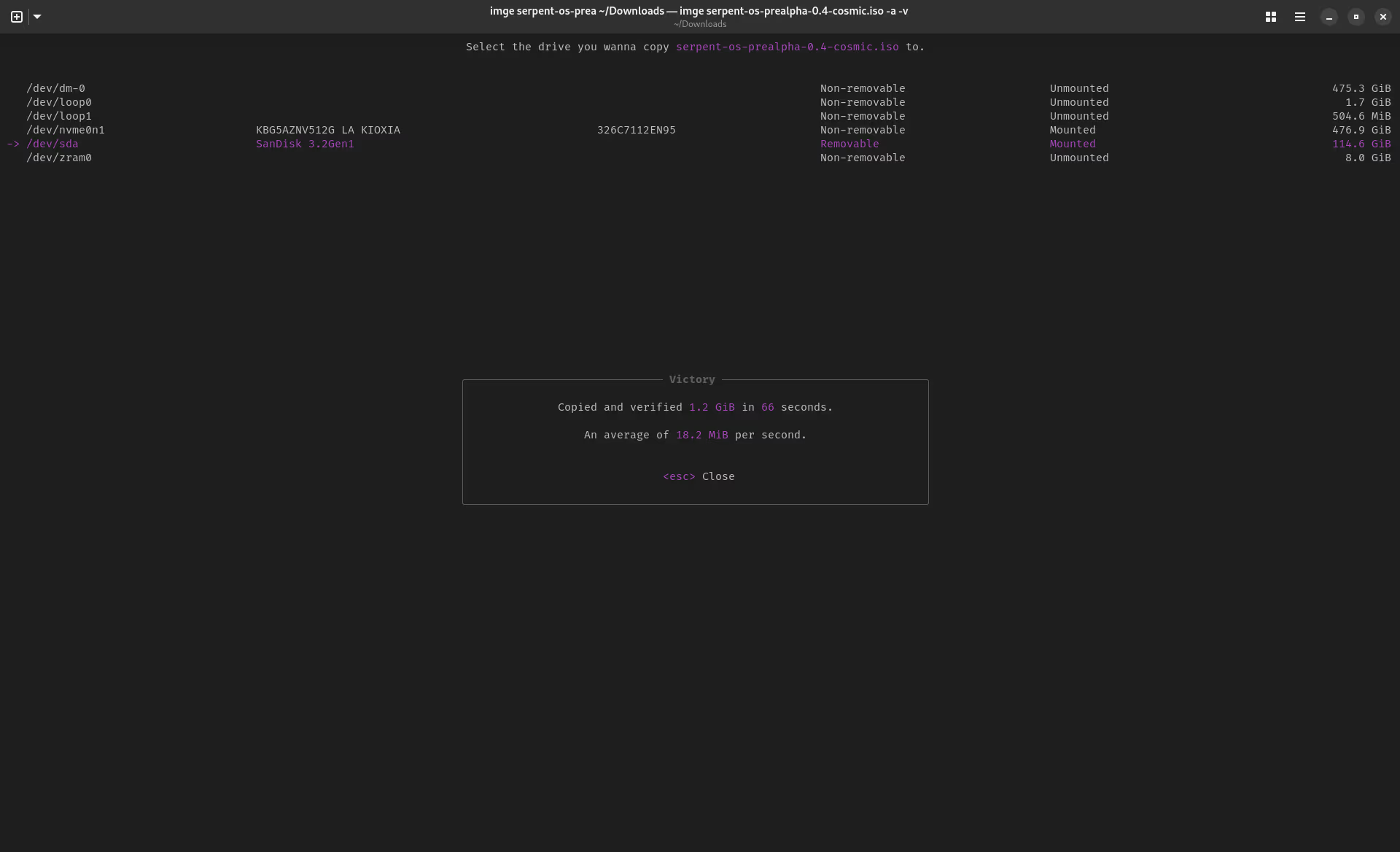
With -v, the copy is read back and verified:
imge is licensed under the Mozilla Public License 2.0.